
How to Get a Bible Verse of the Day on Your iPhone Home Screen
Set up a Bible verse of the day widget on your iPhone in about a minute. A step-by-step guide to adding the Freely Given daily verse widget to your home screen.
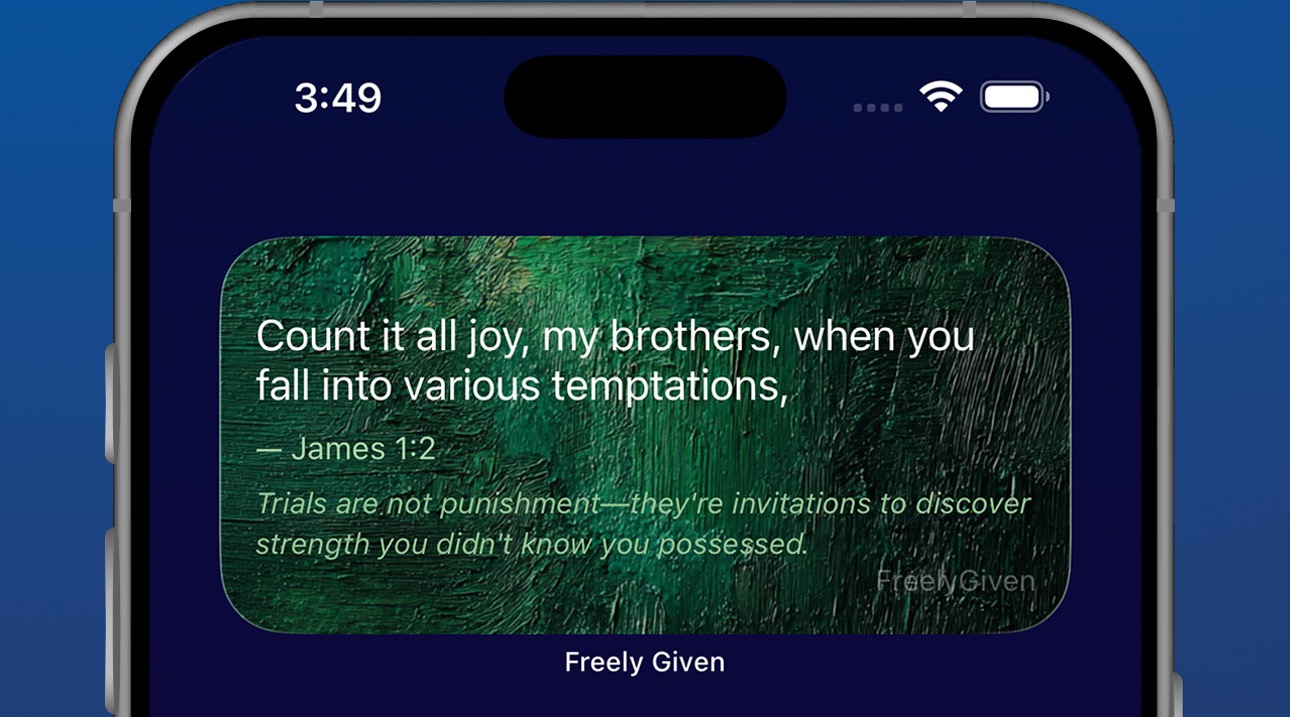
How to Get a Bible Verse of the Day on Your iPhone Home Screen
There's a difference between a Bible verse that arrives as a notification and one that lives on your home screen.
A notification interrupts. You're mid-task, your phone buzzes, and the verse becomes one more thing to swipe away — often unread. A widget is different. It doesn't demand anything. It just sits on your home screen, quietly present, so that every time you unlock your phone to check the weather or answer a text, Scripture is already there waiting. You end up reading it five, ten, twenty times a day without ever deciding to.
That's the case for a Bible verse widget: it turns the most-viewed screen in your life into a small, persistent moment with God's Word.
Here's how to set one up on your iPhone in about a minute.
What You'll Need
The free Freely Given app includes a Daily Verse widget in every size iOS offers — small, medium, and large — with a fresh, curated verse every day and beautiful themed backgrounds that rotate through the week. The widget is part of the free plan. No subscription needed.
Setting Up the Widget: 6 Steps
-
Install Freely Given. Download it free from the App Store, then open the app once so it can load your first daily verse.
-
Long-press your home screen. Touch and hold any empty spot until the apps start to jiggle.
-
Tap the + button. It appears in the top-left corner and opens the widget gallery.
-
Search for "Freely Given." Type it into the search bar at the top of the widget gallery and tap the app when it appears.
-
Pick a size. Swipe through the previews. The small widget fits a short verse; the medium widget shows the full verse comfortably; the large widget adds room for longer passages.
-
Tap Add Widget. Drag it to the spot you want, then tap Done. That's it — a new verse appears automatically each morning, no opening the app required.
Where to Put It (Placement Matters)
A widget you never see is just wasted screen space, so placement is worth ten seconds of thought:
- First home screen, top half. This is the screen you see every time you unlock your phone, and the top half is where your eyes land first. That's prime real estate — give it to Scripture instead of another app icon.
- Pair it with your morning apps. If your first-thing-in-the-morning routine is weather, calendar, or email, put the verse widget beside them. You'll read it before the day's noise starts.
- iPad works too. The same widget is available on iPad, where the large size looks especially good on the expanded home screen.
If you ever want a different look, long-press the widget and remove it, then add a different size — your verse and streak aren't affected.
Why a Daily Verse Sticks When Other Habits Don't
Most Bible habits fail because they require a decision every day: open the app, pick a passage, find the time. A home screen widget removes the decision entirely. The verse comes to you, on a screen you already look at dozens of times a day.
And it compounds. A verse you glance at while checking the time in the morning has a way of resurfacing at lunch, in a hard conversation, at the end of a long day. Ambient Scripture works on you differently than Scripture you have to go looking for.
If you want to go further than a single daily verse, the same app pairs the widget with a daily devotional — reflection questions and a prayer prompt built around each day's passage — and structured reading plans with streak tracking to keep you moving through Scripture day after day.
Get Started
The whole setup takes about a minute, and it's completely free — the verse, the widget, the devotionals, and every reading plan.